


A wireless WiFi router is a critical device in today’s connected world. It lets phones, laptops, printers, and smart devices get online without physical cables. Because WiFi is now essential for work and daily life, it helps to understand how does a wireless WiFi router work and what it controls.
In simple terms, how does a wireless WiFi router work? It connects your local network to the internet and then shares that connection over radio signals. As a result, multiple devices can browse, stream, and communicate at the same time. Below, we’ll break down the key parts and explain how a wireless WiFi router operates.
Components of a Wireless WiFi Router
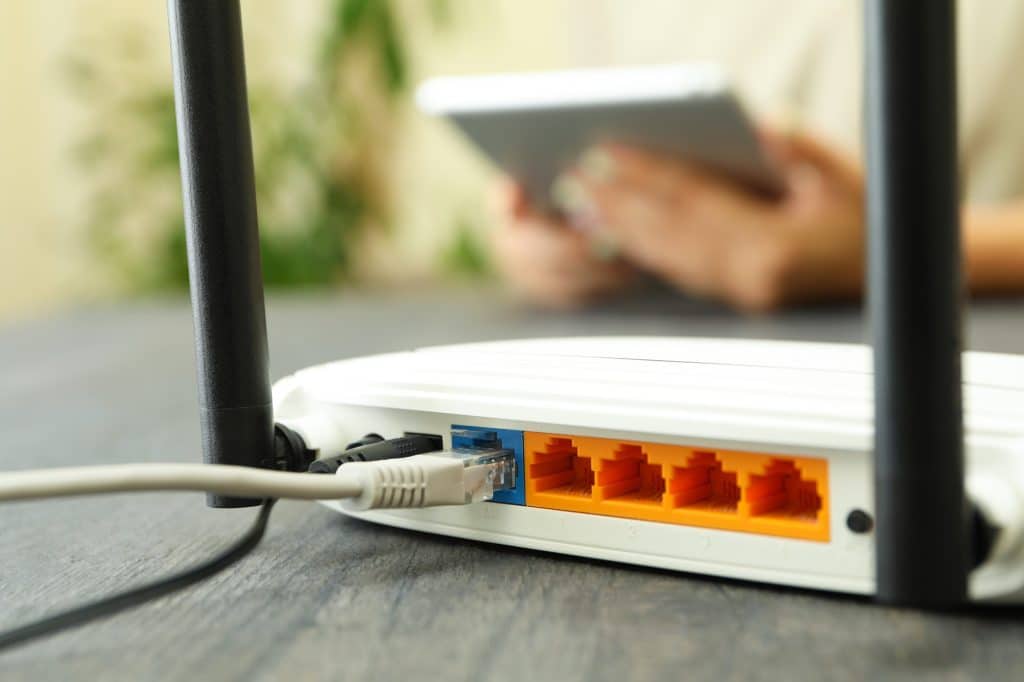
A standard wireless router includes several core components. Together, they manage connections, send signals, and route traffic between your devices and the internet.
- Radio transmitter: Sends and receives data using wireless radio signals.
- Antennas: Enhance the range and strength of the wireless signal.
- Processor: Handles traffic, security rules, and device connections.
- Ports: Provide Ethernet connections for wired devices (PCs, switches, VoIP phones, etc.).
- Firmware: The router’s operating software that controls features, updates, and security settings.
Because each component plays a role, a weak processor, outdated firmware, or poor antenna placement can reduce performance quickly.
How Does a Wireless WiFi Router Work?
Although routers can look complicated, the process is straightforward. Essentially, a router gets internet access, broadcasts WiFi, and then routes traffic to the right device. In other words, how does a wireless WiFi router work comes down to three steps: connect, broadcast, and route.
1. Connection to the Internet
First, the router connects to the internet through a modem or an ISP gateway. The modem receives data from your Internet Service Provider (ISP) and passes it to the router. Then the router shares that connection with your network.
2. Signal Transmission
Next, the router converts internet data into wireless radio signals. Using its antennas, it broadcasts WiFi so devices with wireless adapters can detect the network and connect. In addition, most routers also broadcast multiple networks (for example, a main network and a guest network).
3. Data Routing
When a device requests something online, the router processes the request and sends data packets to the correct destination. After that, the router receives the response and delivers it back to the device that asked for it. As a result, browsing and streaming feel seamless when everything is configured correctly.
Wireless Frequencies
Most wireless routers operate on two main frequency bands: 2.4 GHz and 5 GHz. Each band has strengths and trade-offs, so choosing the right one matters.
- 2.4 GHz: Offers longer range, but speeds are typically lower. However, it’s more likely to experience interference.
- 5 GHz: Provides faster speeds and higher capacity. On the other hand, range is shorter and walls reduce signal more quickly.
Because modern routers support dual-band (and sometimes tri-band), devices can connect to the best option based on distance, congestion, and performance needs.
Optimizing the Performance of Your Wireless Router
If your WiFi feels slow or unreliable, a few changes can make a big difference. For best results, combine good placement with security and routine maintenance.
- Placement: Put the router in a central location, elevated, and away from thick walls or metal objects.
- Firmware updates: Update firmware regularly to improve security and stability.
- Security settings: Protect your network with strong passwords and WPA3 when available.
- Device management: Review connected devices and remove anything you don’t recognize.
In addition, if you have dead zones, you may need better placement, more access points, or a redesigned layout rather than “more power.”
Conclusion
In summary, how does a wireless WiFi router work? It connects your network to the internet, broadcasts WiFi, and routes traffic between your devices and online services. Once you understand the basics, it’s easier to improve performance, tighten security, and avoid common setup mistakes.
If you’re considering enhancing your home or office network, reach out for expert guidance. Book a free consultation with the UniFi Nerds today via
UniFi Nerds
to schedule your session. We’ll help you optimize your wireless networking experience.